How to Know If Your SIM Is Registered | Globe, TM, Smart, TNT and DITO
If you are searching for how to know if your SIM is registered, start by checking your confirmation SMS, official carrier app, or SIM registration portal. The correct method depends on your mobile network.
Globe and TM users can check the GlobeOne App or Globe portal. Smart and TNT users can use Smart’s official registration system. DITO users may need their mobile number and registration reference number.
This guide explains how to check the SIM registration status of Globe, TM, Smart, TNT, and DITO numbers. It does not repeat the full registration process or accepted-ID requirements.
How to Know If Your SIM Is Registered Online

You can use one or more of these methods:
- Search your messages for a registration confirmation.
- Open your network’s official mobile app.
- Look for a registered badge or status notice.
- Visit the official SIM registration portal.
- Enter your mobile number when requested.
- Check the registration result.
- Contact official support if the result is unclear.
Do not use an unknown SIM-status website. Only your mobile network can provide a reliable registration result.
Also Read: Smart Sim Registration
SIM Registration Status by Network
| Network | Best Way to Check | What to Look For |
| Globe | GlobeOne App or official Globe portal | Registered badge or successful status |
| TM | GlobeOne App or official Globe portal | Registered badge or confirmation |
| Smart | Official Smart portal or Smart support | Already registered or successful result |
| TNT | Smart registration system or support | Confirmation or registered status |
| DITO | DITO status page or DITO App | Reference number and application result |
A working SIM does not always prove that registration is complete. Use an official app, portal, or support channel when you need a clear answer.
Signs That Your SIM Is Registered
A registered SIM normally shows one or more of these signs:
- Confirmation SMS from your network
- Registered badge in the official app
- Successful result on the registration portal
- Registration reference number
- Message saying the number is already registered
- Completed status linked to your number
Save the confirmation message and reference number. They may help if your account later develops a problem.
Also read: SIM Registration Philippines
How to Check Globe SIM Registration Status
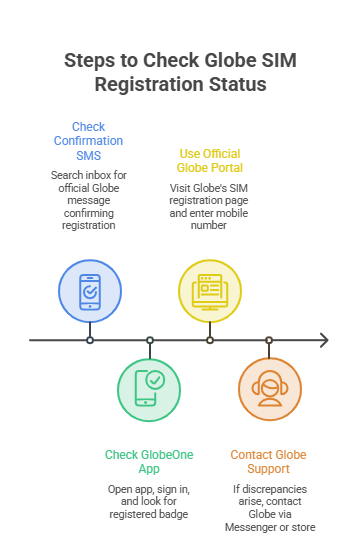
Globe prepaid users can check their status through SMS, the GlobeOne App, or the official Globe portal.
Check the Confirmation SMS
Search your inbox for a message from Globe confirming that registration was successful.
Check the sender carefully. A real confirmation should come through an official Globe channel.
Do not trust a message asking for your OTP, password, ID photo, or payment.
Check the GlobeOne App
Open the GlobeOne App and sign in with your Globe number.
Look for the registered badge linked to your account. Globe lists this badge as a way for prepaid users to confirm their SIM registration.
Use the Official Globe Portal
Start from Globe’s official SIM registration page:
https://www.globe.com.ph/register-sim-card
Enter your mobile number when requested. The system may show whether the number has already been registered.
Use only an official Globe website. Avoid pages that copy the Globe logo but use a different domain.
Globe also advises users who did not receive a confirmation SMS to enter their number on the official portal and check the result.
Contact Globe Support
If the portal and GlobeOne App show different information, contact Globe through its official Messenger account or visit a Globe Store.
Keep your mobile number, SIM, valid ID, and registration reference number ready.
How to Check TM SIM Registration Status
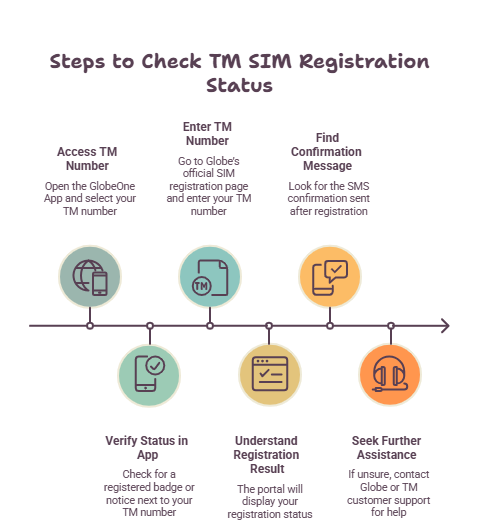
TM uses Globe’s SIM registration system. TM users can therefore check their status through the GlobeOne App or Globe registration portal.
Check the GlobeOne App
Open your TM number in the GlobeOne App.
Look for a registered badge or registration notice connected to the number.
Use the Globe Registration Portal
Open Globe’s official SIM registration page and enter your TM number.
The system may display an already-registered message or another status notice.
Do not use a separate unofficial TM status portal. Start from an official Globe or TM source.
Search for the Confirmation Message
Search your SMS inbox for the confirmation sent after registration.
Not receiving the message does not always mean that registration failed. Confirm the result through the app, official portal, or customer support.
How to Check Smart SIM Registration Status
Smart users can check their registration through the confirmation message, official registration system, or Smart support.
Find the Smart Confirmation Message
Search your inbox for a successful registration message from Smart.
The message may also include reference information. Save it for future account concerns.
Use the Official Smart Portal
Start from Smart’s official registration page:
Enter your Smart mobile number and follow the verification prompt.
If the number already has a registration record, the system may display an existing-registration notice instead of opening a new application.
Do not enter your number or OTP on a website that only copies Smart’s branding.
Contact Smart Support
If you cannot confirm your status online, contact Smart through:
- Official Smart chatbot
- Smart social media support
- Hotline *888 from a Smart number
- A Smart Store
Tell the support agent that you only want to check the SIM registration status. Never send an OTP through social media or chat.

How to Check TNT SIM Registration Status
TNT registration uses Smart’s official system because TNT operates under Smart.
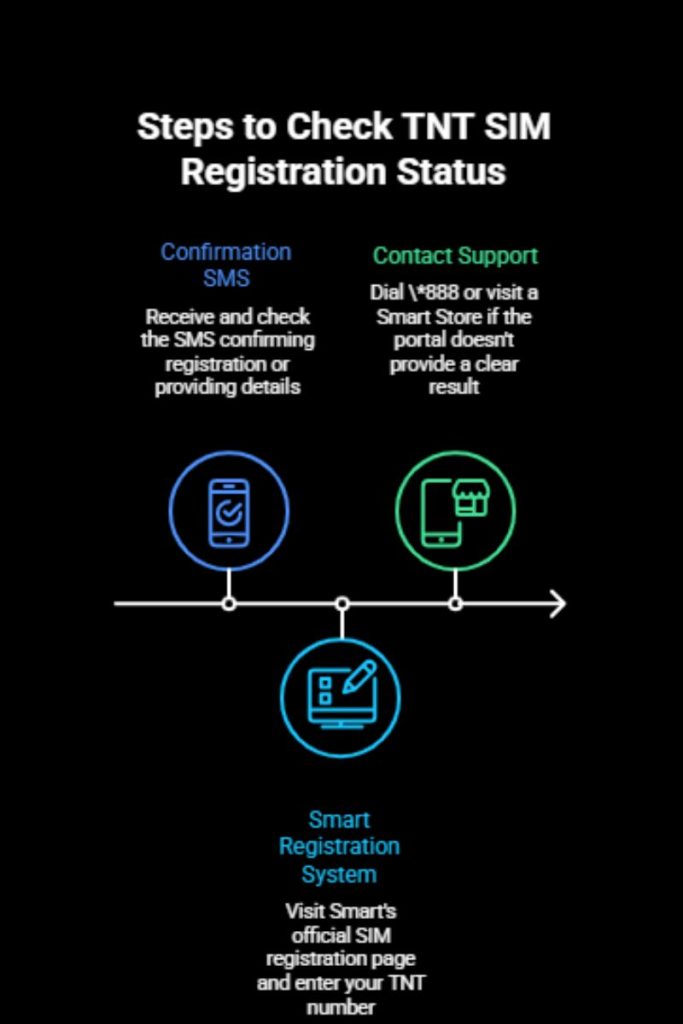
Check the Confirmation SMS
Search for the message received after completing TNT SIM registration.
The message should confirm the result or provide registration details.
Use Smart’s Registration System
Open Smart’s official SIM registration page and enter your TNT number.
The system may show that the number is already registered. Read the result carefully before taking another action.
Do not submit the same registration again unless the official system says that the earlier request failed.
Contact TNT or Smart Support
If the portal does not show a clear result, contact official TNT or Smart support.
You can dial *888 from a Smart or TNT number or visit a Smart Store.
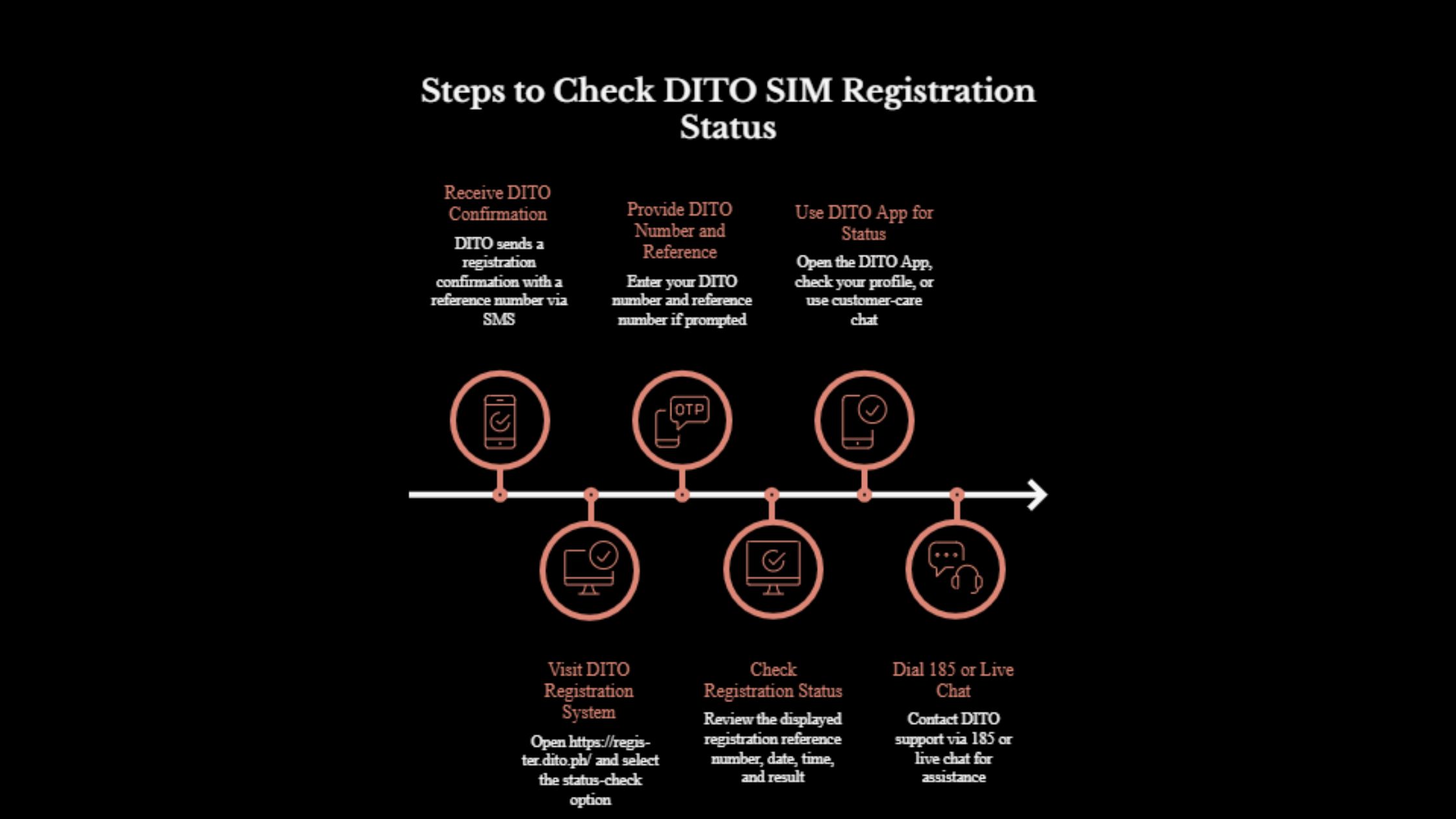
How to Check DITO SIM Registration Status
DITO may allow users to check their result with a mobile number and registration reference number.
Check the DITO Confirmation
Search for the registration confirmation sent by DITO.
The message may include a reference number. Save it because it can be required for checking the application.
Use the DITO Registration System
Open DITO’s official registration platform:
Select the available status-check option. Enter your DITO number and reference number if requested.
The result may display:
- Registration reference number
- Application date and time
- Current registration result
Never use another person’s result link or registration reference number.
Check the DITO App
Open the DITO App and review your profile or registration notice.
The app also provides customer-care chat if you cannot find a clear result.
Contact DITO Support
Dial 185 from a DITO number or use live chat in the DITO App.
Explain that you want to check your registration status. Do not send private documents to an unverified support account.
What Do SIM Registration Status Messages Mean?
| Status | Meaning | What to Do |
| Registered or Successful | Registration is complete | Save the confirmation |
| Pending | The request is still being checked | Wait and check again |
| Rejected or Failed | The request was not approved | Read the reason and correct the issue |
| Already Registered | The number has an existing record | Do not submit another form |
| Not Found | No matching record was found | Check the number and reference details |
| Incomplete | One or more steps were not finished | Return through the official platform |
| Deactivated | The SIM cannot use normal services | Contact the network |
A pending status does not mean the application has failed. It means the network has not provided a final result.
Registration Reference Number vs OTP
An OTP and registration reference number serve different purposes.
OTP
An OTP is a short code sent during mobile-number verification.
It confirms that you have access to the SIM. It normally expires after a short period.
Never share an OTP with another person.
Registration Reference Number
A reference number is created after a registration request is submitted.
It may help you:
- Check the application status
- Report a registration problem
- Find an earlier application
- Prove that the form was submitted
Keep the reference number private and save it in a secure place.
What If You Lost the Confirmation Message?
Losing the confirmation SMS does not cancel your registration.
Try these steps:
- Open your network’s official app.
- Look for a registered badge or status notice.
- Enter your number on the official portal.
- Check saved screenshots or email messages.
- Contact the network for verification.
Your carrier may ask you to prove that you own or use the SIM. Follow only the instructions given through an official support channel.
What If the Portal Says the SIM Is Already Registered?
An already-registered message normally means that the number has an existing registration record.
Do not submit the form repeatedly. First confirm whether you or an authorized person completed the earlier registration.
Contact your network if:
- You never registered the number
- You do not know whose details were used
- You bought the SIM from another person
- The registered information is incorrect
- You suspect identity misuse
Do not send your ID or selfie to an unknown person offering to change the record.

Why Is a Registered SIM Not Working?
Registration is only one part of mobile service.
A registered SIM may still fail because of:
- Weak network coverage
- Incorrect APN settings
- Empty load or expired promo
- Damaged SIM
- Incompatible phone
- Account restriction
- Activation delay
- Incorrect mobile settings
If the official system confirms registration, check your device, account, and network settings next.
Registration verifies the SIM owner. Activation allows the SIM to use calls, texts, and mobile data. These are related but different processes.
How to Check SIM Registration Status Safely
Follow these safety steps:
- Use only your carrier’s official website or app.
- Check the domain before entering your number.
- Never share an OTP.
- Keep your reference number private.
- Avoid third-party status-checking sites.
- Do not pay someone to check a normal status.
- Use official customer support if the result is unclear.
A status-check website does not need your banking password, social media password, or payment details.