DITO eSIM | Compatible Devices, Registration and Activation Guide
DITO eSIM lets you use the DITO network without placing a physical SIM card inside your phone. It works through a digital SIM profile installed on a supported device.
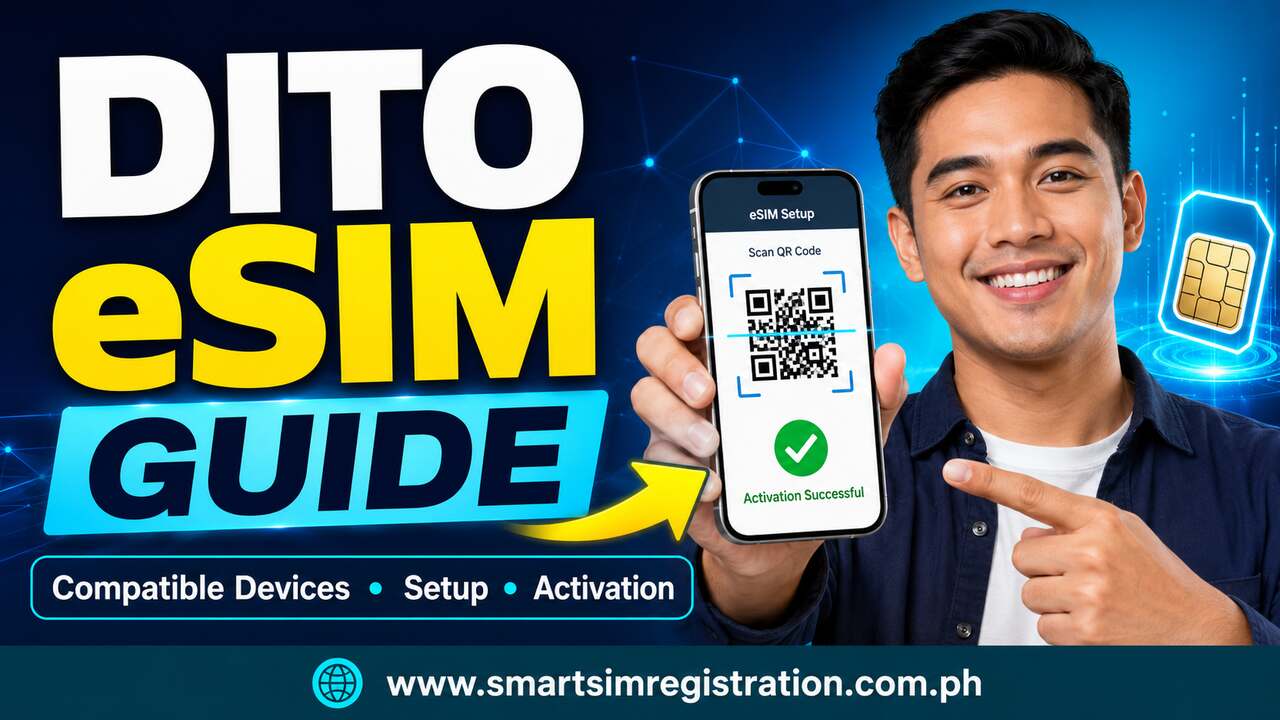
You receive a QR code after buying the eSIM. You scan this code to install the DITO mobile plan. You must then register and activate the eSIM before using calls, texts, and mobile data.
This guide explains how to buy, install, register, and activate a DITO eSIM. It also covers compatible devices and common QR-code problems.
What Is a DITO eSIM?
An eSIM is a digital SIM built into a phone or tablet. It provides mobile service like a physical SIM, but you do not need to insert a plastic card.
A DITO eSIM has its own mobile number and mobile plan. It can be useful for people who:
- Want to use two mobile numbers on one phone
- Travel often
- Do not want to change physical SIM cards
- Have a phone with an eSIM option
- Want to set up a mobile plan through a QR code
Your phone must support eSIM technology and work with the DITO network.
DITO eSIM vs Physical DITO SIM
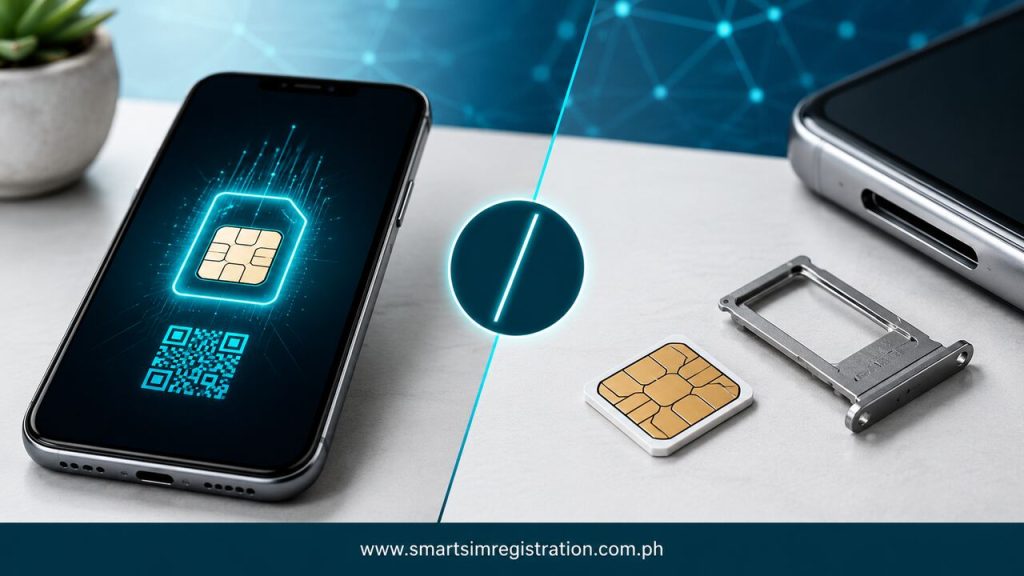
Both options can connect you to the DITO network, but their setup methods are different.
| Feature | DITO eSIM | Physical DITO SIM |
| SIM format | Digital profile | Plastic SIM card |
| Installation | QR code | Insert into SIM tray |
| Compatible device | Must support eSIM | Must have a SIM slot |
| Registration | Through the DITO App | Official portal or DITO App |
| Moving between phones | May require support or a new QR code | SIM can normally be moved |
| Risk of physical loss | No removable card | Card can be lost or damaged |
A DITO eSIM is not only an online version of the physical registration form. It also requires device checking, QR-code installation, and mobile-plan setup.
Also check : DITO SIM Registration
Where to Buy a DITO eSIM
New subscribers can buy a DITO eSIM through:
- The DITO eShop in the DITO App
- A DITO Experience Store
Use an official DITO sales channel. Avoid QR codes offered by unknown sellers or social media accounts.
The official DITO eSIM page currently lists the prepaid eSIM at ₱99. It also lists a starter offer with data, texts, and call minutes. Prices and offers can change, so check the current details before paying.
Save your order number, receipt, and purchase confirmation. You may need these details if the QR code is lost or does not work.
Check DITO eSIM Compatibility Before Buying
A phone can support eSIM technology but still have limits based on its model, region, network lock, or software version.
Before buying, check that:
- Your exact phone model supports eSIM
- The phone is not locked to another network
- The software is updated
- The device can use the DITO network
- An eSIM option appears in the phone settings
Do not depend only on the model name. Some phones have eSIM support in one country but not in another.
DITO eSIM Compatible Devices
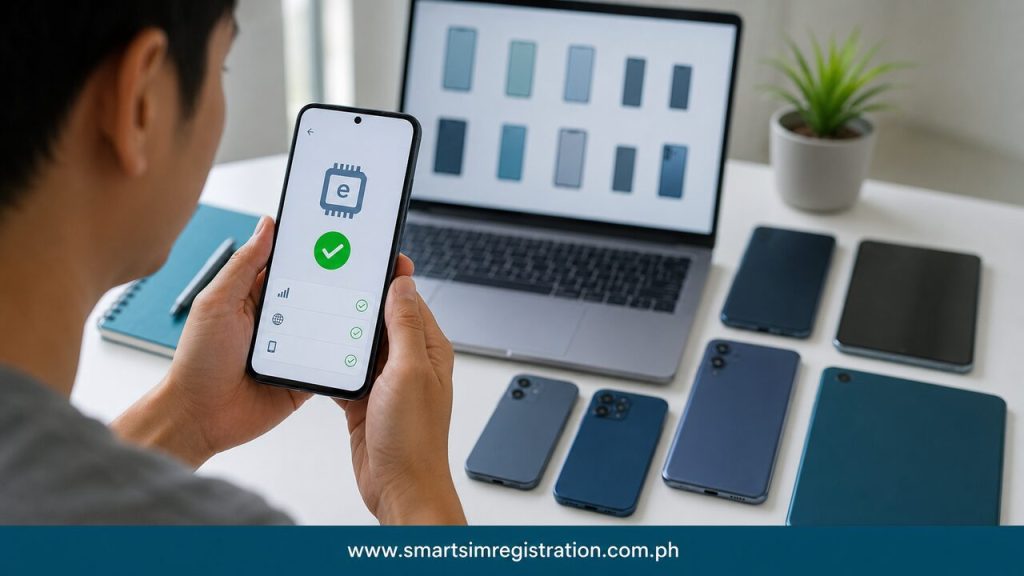
DITO currently lists supported models from brands such as:
- Apple
- Samsung
- Huawei
- Honor
- Motorola
- Nokia
- Oppo
- Sharp
- Sony
- Xiaomi
Examples listed by DITO include the iPhone XS, iPhone XR and later models, Google Pixel 3 and later, Samsung Galaxy S20 and later series, Galaxy Z models, and selected phones from other brands.
This does not mean every version of these phones will work. Check your exact model on DITO’s current compatibility list before buying.
DITO currently notes that supported iOS devices use 4G data with its eSIM service. Check the official DITO eSIM page for the latest device and network details.
How to Check If Your Phone Supports eSIM
You can check the phone settings before placing an order.
On Android
The menu names differ between brands, but you can usually:
- Open Settings.
- Tap Connections or Network and Internet.
- Open SIM Manager or SIM Card Manager.
- Look for Add eSIM, Add Mobile Plan, or a similar option.
If you cannot find the option, search for “eSIM” inside Settings.
On iPhone
Follow these steps:
- Open Settings.
- Tap Cellular or Mobile Data.
- Look for Add eSIM or Add Cellular Plan.
The option may not appear if the device, region, or mobile carrier does not support it.
What You Need Before Setup
Prepare these items before installing your DITO eSIM:
| Item | Why You Need It | Quick Tip |
| Compatible phone | Required to install the digital profile | Check the exact model, not only the brand |
| Internet connection | Needed to download the eSIM profile | Use stable and private Wi-Fi |
| DITO QR code | Adds the DITO plan to your phone | Keep a safe copy before scanning |
| DITO App | Used for registration and account setup | Install or update it first |
| Valid ID | Needed for SIM registration | Use the same details shown on the ID |
| Purchase receipt | May be needed for support | Save the order number and screenshot |
Do not share your QR code. It works like access information for your mobile plan.
How to Install a DITO eSIM on Android
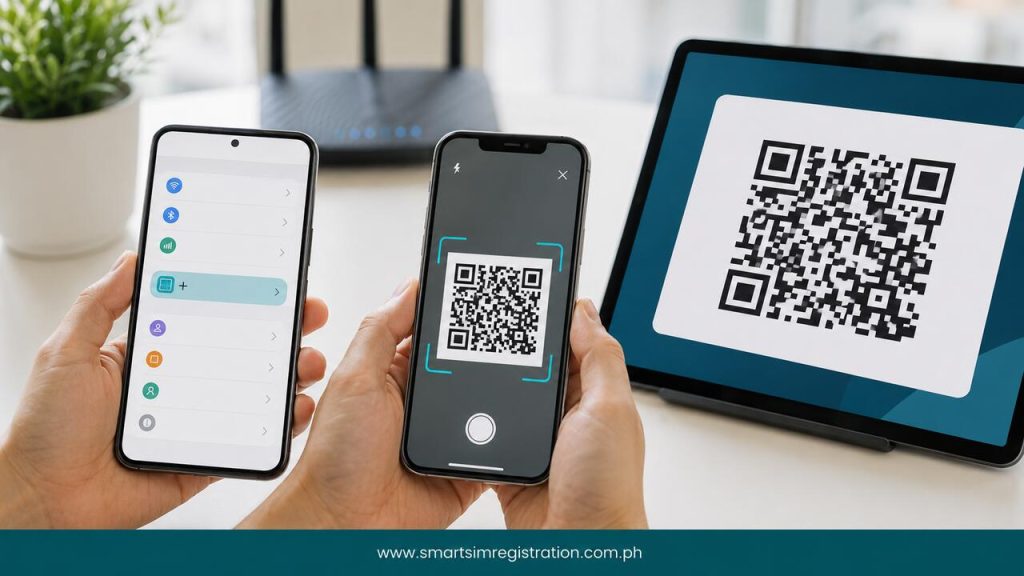
Menu names may be different on Samsung, Google, Huawei, Oppo, Xiaomi, and other Android phones.
The general process is:
- Connect the phone to Wi-Fi.
- Open Settings.
- Tap Connections.
- Open SIM Card Manager.
- Select Add eSIM or Add Mobile Plan.
- Choose the option to add a plan with a QR code.
- Scan the DITO QR code.
- Follow the instructions on the screen.
- Open the DITO App and complete registration.
- Restart the phone after activation.
Do not delete the eSIM profile while registration or activation is in progress.
How to Install a DITO eSIM on iPhone
Follow these steps on a supported iPhone:
- Connect the iPhone to Wi-Fi.
- Open Settings.
- Tap Cellular or Mobile Data.
- Select Add eSIM.
- Choose Use QR Code.
- Scan or upload the DITO QR code.
- Follow the instructions on the screen.
- Name the plan if the phone asks you to do so.
- Open the DITO App and register the eSIM.
- Restart the iPhone after activation.
If you use another SIM on the same phone, check which line is selected for calls, messages, and mobile data.
How to Register a DITO eSIM
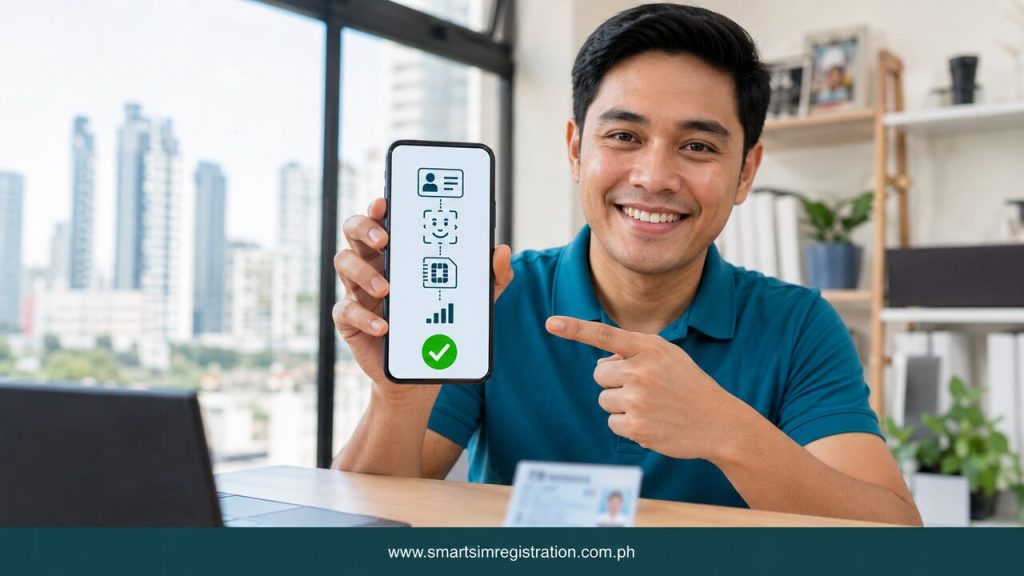
Installing the digital profile does not always complete SIM registration. You must register the new mobile number under the correct subscriber name.
Open the DITO App after installing the eSIM. Select the SIM registration option and follow the instructions.
You may need to provide:
- Full legal name
- Date of birth
- Current address
- Valid government-issued ID
- Clear selfie
- Other details requested by DITO
Use the same information shown on your ID.
This article does not repeat the complete accepted-ID list or special rules for minors, tourists, and businesses. Those details belong in the main DITO SIM Registration guide.
How to Activate a DITO eSIM
Activation normally happens after you:
- Install the eSIM profile.
- Complete DITO SIM registration.
- Follow the instructions in the DITO App.
- Restart the phone.
- Turn on the DITO mobile line.
- Select DITO for mobile data if needed.
After setup, check whether you can use data, calls, and texts.If you use two SIMs, make sure DITO is enabled. Your phone may still be using the other number as its main mobile-data line.
How to Use DITO eSIM with a Physical SIM
A compatible dual-SIM phone may allow you to use a DITO eSIM and a physical SIM together.
Each SIM can have:
- A separate phone number
- A separate mobile plan
- Its own network connection
- Different settings for calls and data
Open the SIM settings and choose which line should handle:
- Mobile data
- Calls
- Text messages
- Roaming
The number of profiles you can save or activate depends on the phone model. Some devices can store several profiles but allow only one or two to remain active.
Common DITO eSIM Problems and Fixes
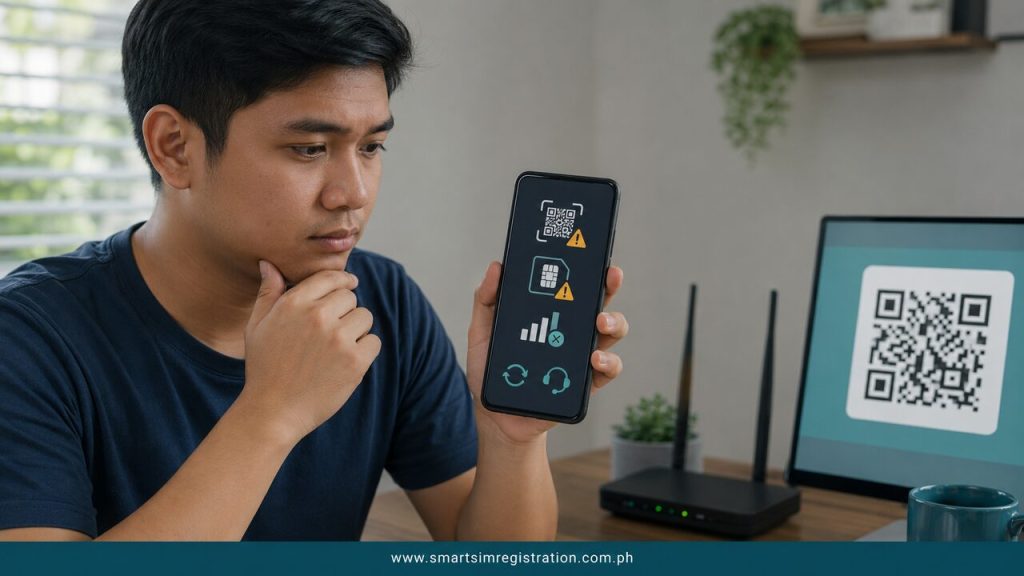
QR Code Does Not Scan
Increase the screen brightness if the QR code appears on another device. Clean the camera lens and keep the full code inside the scanning frame.
Do not crop, edit, or blur the QR code. If it was sent by email, open the original file instead of using a low-quality screenshot.
QR Code Has Already Been Used
A DITO eSIM QR code should not be installed on several phones. After it has been used, it may not work again on another device.
Do not repeatedly scan the code. Contact DITO support if the first installation failed after the code was accepted.
Add eSIM Option Is Missing
Check whether your exact phone version supports eSIM. Install the latest system update and restart the device.
The feature may also be unavailable when a phone is carrier-locked or sold for a region without eSIM support.
DITO Line Appears but Has No Service
Open the SIM settings and confirm that the DITO line is turned on.
Restart the phone and check the following:
- DITO is selected for mobile data
- Airplane mode is off
- The phone supports the DITO network
- DITO has coverage in your area
- SIM registration has been completed
If the problem continues, contact DITO through the app.
Registration Is Not Complete
Open the DITO App and check whether any step is still pending.Complete the ID and selfie checks if requested. Make sure your personal details match the ID.
Do not remove the eSIM profile while registration is pending.
QR Code Is Lost Before Installation
Submit a help request through the DITO App. Keep your receipt, order number, valid ID, and any available copy of the order details ready.
According to DITO’s current guidance, a replacement request may result in a new QR code and a different mobile number. Confirm the exact outcome with customer support before requesting it.
Can You Move a DITO eSIM to Another Phone?
Do not assume that an installed eSIM can be moved like a physical SIM.
DITO’s current page contains mixed information about transferring an eSIM to a new handset. For this reason, contact DITO support before deleting the profile or changing phones.
Keep the original QR code and proof of purchase. However, an already-used QR code may not work on another device.
Never delete your active profile until DITO confirms the correct transfer or replacement method.
Also Read: Sim Registration
Can You Convert a Physical DITO SIM to eSIM?
DITO’s current official FAQ says that direct conversion from a physical DITO SIM to eSIM is not yet available.
It also says that conversion from a DITO eSIM to a physical SIM is not currently available. Mobile number porting with an eSIM is also listed as unavailable.
These services may change later. Check the official DITO page before making a purchase based on number transfer or conversion.
How to Remove a DITO eSIM
Remove the profile only when you no longer need it or DITO support tells you to do so.
On iPhone
- Open Settings.
- Tap Cellular.
- Select the DITO plan.
- Tap Delete eSIM.
On Android
- Open Settings.
- Open SIM Card Manager.
- Select the DITO eSIM.
- Tap Remove.
Deleting a profile does not guarantee that the original QR code can be used again. Confirm the recovery process first.
How to Contact DITO Support
You can get help through:
- A support ticket in the DITO App
- Live chat in the DITO App
- Customer Care by dialling 185 from a DITO number
- Email at [email protected]
- A DITO Experience Store
Do not post your QR code, ID, receipt, or personal details on a public page.